Roon ARC Port Forwarding: Fix "Not Ready" & CGNAT (2026)
Step-by-step Roon ARC port forwarding guide. Fix Roon Server "Not Ready" errors, resolve port 55000 and multiple_nat_found, and bypass CGNAT on 5G internet.
Quick Answer: How to Fix Roon ARC Port Forwarding
To configure roon arc port forwarding, open Roon on your computer, go to Settings > Roon ARC, and note your assigned port (default is TCP 55000). Next, log into your router admin panel, assign a static DHCP reservation to your Roon Core, and add a port forward rule: Protocol TCP, External Port 55000, Internal Port 55000, pointing to your Roon Core IP. If your roon arc port forwarding not working displays "multiple_nat_found", your ISP modem is running in routing mode instead of bridge mode. If it returns "error: connect ETIMEDOUT" or you use T-Mobile 5G Home Internet or Starlink, your ISP enforces Carrier-Grade NAT (CGNAT)—which blocks incoming ports. The definitive solution for roon arc without port forwarding hassles under CGNAT is connecting via a dedicated VPN with port forwarding like Proton VPN or PureVPN Dedicated IP.
Configuring roon arc port forwarding is designed to unleash your curated lossless music library anywhere in the world. When you are on your home Wi-Fi, Roon ARC connects effortlessly via local LAN discovery.
However, the moment you walk out the front door and switch to cellular 5G data or hotel Wi-Fi, you are frequently greeted by the frustrating "Not Ready: Poor connection or Roon Server offline" error. Whether your router failed automatic UPnP, displayed cryptic diagnostic codes like multiple_nat_found, or your ISP enforces strict Carrier-Grade NAT (CGNAT), this guide provides immediate clarity. Use our interactive generator below to extract your exact router forwarding rules and diagnose any failure in under 60 seconds.
Direct remote connection to your Roon Core on TCP 55000 preserves bit-perfect bitrates, TIDAL/Qobuz integration, and ARC DSP.
Customizes router forwarding parameters whether you run Roon OS (Nucleus/ROCK), Windows, macOS, or Docker.
Step-by-step resolution for T-Mobile 5G Home Internet, Starlink, and mesh Wi-Fi double NAT cascades.
Interactive Roon ARC Diagnostic & Port Rule Generator
Select your Roon Core platform, verify your internal IP, and select any error code from Roon Settings > Roon ARC for tailored fixes.
Must be reserved in router DHCP static lease list.
Configured in Roon > Settings > Roon ARC (Range: 10000 - 65535).
Roon ARC Network Architecture: WAN Direct vs. CGNAT Bypass
Understanding how audio packets traverse from your smartphone over mobile cellular data to your home Roon Server:
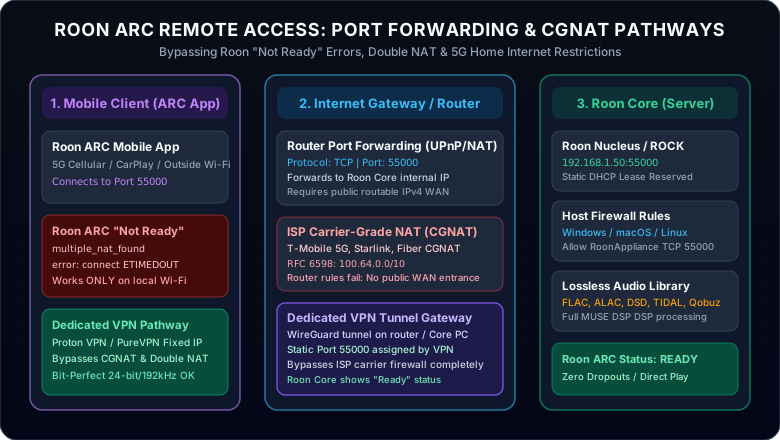
Figure 1: Direct TCP port 55000 traversal under Public IPv4 versus carrier blockage and VPN tunnel encapsulation.
Roon ARC Ports & Why UPnP Fails
When you toggle on Roon ARC, Roon Server attempts to broadcast a Universal Plug and Play (UPnP) or NAT-PMP request to your primary gateway asking it to automatically map TCP port 55000. In enterprise or consumer networks, UPnP fails for three specific reasons:
| Setting / Factor | Default State | Why It Fails Roon ARC | Recommended Action |
|---|---|---|---|
| Router UPnP | Disabled (Security) | Routers like pfSense, OPNsense, and UniFi disable UPnP by default to prevent malware from opening ports. | Manually forward TCP 55000 in NAT settings. |
| Roon ARC Port | TCP 55000 | Some ISPs throttle or filter high-range ephemeral ports above 50000. | Change port to custom 45000 or 25565 in Roon Settings. |
| Double NAT | Modem + Mesh Router | UPnP only opens ports on the immediate mesh node, leaving the ISP modem firewall completely closed. | Switch ISP modem to IP Passthrough / Bridge mode. |
| Carrier CGNAT | RFC 6598 100.64.0.0/10 | WAN IP is private within ISP datacenter. Incoming connection packets are silently dropped at tower switch. | Tunnel traffic through Proton VPN or PureVPN Dedicated IP. |
How to Manually Configure Roon ARC Port Forwarding (Step-by-Step)
Follow this verified procedure to manually punch through consumer and prosumer routers:
Open your router dashboard (e.g. 192.168.1.1). Navigate to LAN > DHCP Server > Address Reservation. Locate your Roon Core MAC address and bind it to a fixed IP such as 192.168.1.50.
In the Roon desktop application, click Settings > Roon ARC. Confirm the Port number displayed. If port 55000 was flagged or blocked, you can customize it to any port between 10000 and 65535.
Go to Port Forwarding / Virtual Server. Set Service Name: Roon ARC, Protocol: TCP (or Both), External Port: 55000, Internal Port: 55000, Internal IP: your Roon Core IP. Save and Apply.
Click Test again in Roon Settings > Roon ARC. When successful, the status changes to a purple badge reading "Ready". Disconnect your phone from Wi-Fi and verify audio playback over cellular.
A common question from security-conscious users is: "Is there a downside to port forwarding, and is it safe to expose port 55000?"
When you open TCP port 55000, any packet sent to your home public IP on that port reaches RoonAppliance directly. Roon ARC implements end-to-end cryptographic token authentication, so unauthorized users cannot stream your music. However, automated vulnerability crawlers like Shodan and Censys continuously scan every IPv4 address. If a zero-day exploit emerges in Roon's network listener, an exposed port poses risk. Tunneling through an encrypted VPN eliminates this attack surface entirely.
Listen to Roon ARC Anywhere: Bypass 5G CGNAT & Double NAT
If you subscribe to T-Mobile 5G Home Internet, Starlink, Verizon 5G, or live in an apartment complex where you cannot access the central router, standard port forwarding will never work. Setting up a dedicated VPN with port forwarding or a static Dedicated IP creates an encrypted outbound bridge that bypasses carrier firewalls completely—allowing Roon ARC to stream 24/7 with zero drops.
Proton VPN
- Encrypted WireGuard tunnel bypasses Starlink and T-Mobile 5G CGNAT
- Native NAT-PMP port forwarding maps port 55000 directly to Roon Core
- Ultra-low jitter architecture guarantees bit-perfect DSD and FLAC streaming
- 30-day money-back guarantee with audited zero-logs security
2-year plan
PureVPN
- Dedicated IP add-on gives your Roon Core a permanent public IP address
- Static port forwarding means zero dynamic port re-pairing in the Roon app
- Router-level OpenVPN/WireGuard setup protects Nucleus and ROCK appliances
- 31-day risk-free money-back guarantee with 24/7 technical support
5-year plan·$1.69/mo $12.95/mo
This page contains affiliate links. If you sign up through them, NAT Checker may earn a commission at no extra cost to you.
Tailscale vs. Proton VPN / PureVPN for Roon ARC
While Tailscale is a capable mesh overlay, it requires keeping the Tailscale client app running persistently in the background on your mobile phone, which drains battery and can conflict with other mobile VPN profiles or CarPlay. In contrast, Proton VPN WireGuard or a PureVPN Dedicated IP routes through your central router or Roon Core directly, presenting a standardized public endpoint so Roon ARC works natively on your phone without auxiliary apps.
Related Networking & Streaming Port Forwarding Guides
Explore our complete library of firewall and media streaming network tutorials: