Amcrest Remote Access Guide: NVR, PC & Port Setup (2026)
Complete Amcrest remote access guide. Learn how to view Amcrest cameras remotely from a PC or iPhone, fix video spinning on port 37777, and secure feeds with a VPN.
Quick Answer: How to Set Up Amcrest Remote Access
To set up amcrest remote access, you have two primary methods: Amcrest P2P Cloud or direct network connection. For direct IP connection or Amcrest Surveillance Pro remote access, reserve a static LAN IP for your Amcrest camera, NVR, or DVR, and forward two critical ports in your router: HTTP/HTTPS port (default 80 or 8080) for web interface login, and the Media/TCP port (default 37777) for live video and playback streaming. If your web interface opens remotely but the video stream buffers or spins indefinitely, port 37777 is blocked. If your ISP uses CGNAT or you want to prevent automated bots on Shodan from scanning exposed security cameras, route the required services through a compatible VPN gateway: PureVPN’s paid Dedicated IP and Port Forwarding add-ons for selected ports, or Proton VPN paid P2P forwarding for one configurable port.
Configuring amcrest remote access gives you total ownership of your surveillance security feeds without recurring monthly cloud fees. On your local home network, logging into your Amcrest camera, NVR, or DVR loads crystal-clear 4K video instantly.
However, when attempting remote viewing from a remote PC or over mobile cellular data, many users hit a baffling brick wall: the web login page loads, but the live video stream spins or buffers indefinitely. This happens because Amcrest separates HTML web management from the raw media transmission on TCP port 37777. Below, our interactive port and stream calculator provides your exact RTSP strings and router forwarding matrix, while our security breakdown shows how to bypass CGNAT and isolate your cameras from web crawlers.
Full multi-screen live view, PTZ control, and playback on Windows and macOS via Amcrest Surveillance Pro.
Instantly calculate port mappings for TCP 37777, HTTP 8080, and generate verified RTSP / ONVIF stream URLs.
Isolate cameras from botnet search engines (Shodan) and bypass 4G/5G CGNAT with encrypted VPN tunnels.
Interactive Amcrest Port & Stream Calculator
Configure your Amcrest hardware model, LAN IP address, and streaming channels to generate exact router forwarding rules and RTSP stream URLs.
Centralized recorder. Forwarding to NVR IP grants remote view to all connected PoE channels.
If your Amcrest web access loads remotely but the video screen remains black with an infinite loading circle, you forgot to forward TCP port 37777. The web login page operates on HTTP (8080), but video streaming, PTZ controls, and playback authentication communicate exclusively over port 37777. Both ports must be open in your router.
Replace password with your Amcrest device admin credentials.
Amcrest Remote Access Architecture: Open Ports vs. Encrypted VPN Tunnel
Comparing direct router port exposure against an isolated IoT VLAN connected via private WireGuard VPN:
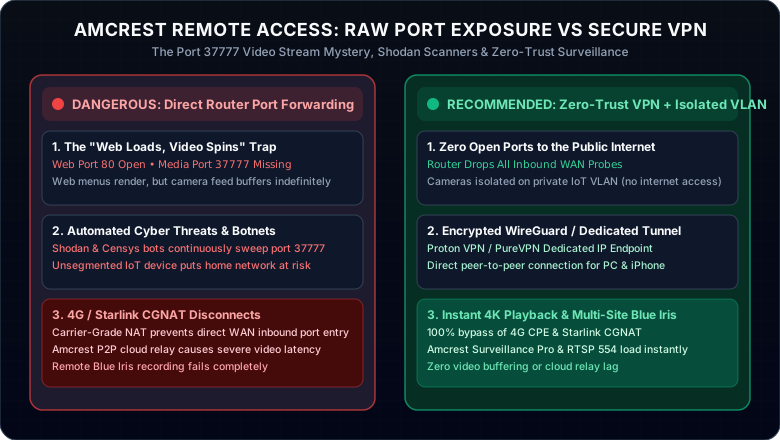
Figure 1: Direct port exposure vs. IoT camera VLAN segregation paired with dedicated VPN access.
Amcrest Surveillance Pro vs. P2P vs. Direct Port Forwarding
To view Amcrest cameras remotely from a PC or mobile device, users typically choose between three distinct networking architectures:
| Access Method | Required Ports | Streaming Performance | Security & Shodan Exposure |
|---|---|---|---|
| Amcrest P2P Cloud | None (Outbound UDP) | Relayed through cloud servers; high latency and occasional 4K video buffering. | Relies on manufacturer relay servers; no router ports open. |
| Direct Port Forwarding | TCP 37777, 8080, 554 | Direct peer-to-peer connection; instantaneous 4K 60fps streaming. | High risk: Shodan crawlers actively scan port 37777 and 80. |
| Encrypted VPN Tunnel | Single WireGuard Port | Full local LAN bandwidth; zero buffering and seamless Blue Iris sync. | Maximum security: 100% closed router ports, zero exposure. |
How to Set Up Amcrest Remote Access on PC (Amcrest Surveillance Pro)
Follow this step-by-step setup procedure to configure Amcrest Surveillance Pro desktop software on Windows or Mac:
Download the official Amcrest Surveillance Pro desktop suite for Windows or macOS. Complete the initial installation and create your local admin password.
Navigate to Devices > Add. Set Device Name, select Method: IP/Domain. Enter your Public WAN IP or DDNS hostname (or local IP if on VPN).
In the Port field, enter 37777 (not the HTTP port 80). Enter your camera or NVR admin username and password, then click Save and Continue.
The Online Status indicator will illuminate Green. Open Live View from the main dashboard, drag your camera channels into the multi-split grid, and verify 4K playback.
Yes, you can reboot your Amcrest NVR or IP camera remotely using two different methods:
Log into the device web interface or Surveillance Pro, navigate to System > Maintenance > Manager, and click Reboot. You can also configure an automated weekly maintenance reboot schedule.
Send a GET request to http://[Device-IP]:8080/cgi-bin/magicBox.cgi?action=reboot with basic HTTP authentication headers over your secure VPN tunnel.
Secure Amcrest Surveillance: Eliminate CGNAT & Neutralize Shodan Scanners
Exposing port 37777 or port 80 to the public web attracts continuous automated sweeps from vulnerability scanners on Shodan and Censys. Furthermore, if your surveillance site uses Starlink, T-Mobile 5G Home Internet, or a mobile 4G LTE SIM router, incoming ports are strictly blocked by Carrier-Grade NAT (RFC 6598). By setting up a compatible VPN gateway with paid port forwarding, optionally paired with a Dedicated IP, you bypass CGNAT and keep your home WAN address separate from the public camera endpoint.
PureVPN
- Dedicated IP add-on provides a permanent static IP address for your NVR
- Zero port shifting: stream RTSP and Surveillance Pro feeds seamlessly
- 100% bypass of 4G/5G mobile broadband and Starlink CGNAT
- 31-day risk-free money-back guarantee with 24/7 priority live support
5-year plan·$1.69/mo $12.95/mo
Proton VPN
- Paid P2P port forwarding gives one configurable camera service a reachable VPN endpoint
- NAT-PMP on a supported desktop host; viewers use its current public IP and assigned port
- Strict Swiss no-logs policy guarantees camera feed metadata privacy
- 30-day money-back guarantee on all paid plans
2-year plan
This page contains affiliate links. If you sign up through them, NAT Checker may earn a commission at no extra cost to you.
Recording Remote Amcrest Cameras with Blue Iris or PureVPN Dedicated IP
Need to record Amcrest IP cameras from a remote warehouse, vacation home, or job site directly into a central Blue Iris server at headquarters? PureVPN Dedicated IP gives your remote camera site a stable public VPN IPv4 address with the paid Port Forwarding add-on and a compatible router or gateway, allowing Blue Iris to continuously ingest RTSP streams on port 554 without dynamic IP drops. For a single configurable camera service, Proton VPN WireGuard with paid port forwarding supplies a reachable public port through a supported desktop gateway. Use HTTPS or encrypted camera protocols to protect the viewer-to-endpoint connection.
Related Security Camera & Remote Viewing Tutorials
Explore additional NVR, DVR, and IP camera networking resources across our knowledge base: