Hikvision Port Forwarding: NVR, RTSP & App Setup (2026)
Complete Hikvision port forwarding guide. Configure NVR ports 8000, 554, and 443, fix Hik-Connect offline status, and secure cameras against botnets and CGNAT.
Quick Answer: How to Port Forward Hikvision NVR & Cameras
To set up hikvision port forwarding, forward these four essential ports on your router to your NVR or IP camera's static IP: Server Port 8000 (TCP for iVMS-4200 and mobile apps), RTSP Port 554 (TCP/UDP for live video and VLC playback), HTTP Port 80 (TCP for web browser view, recommended to remap to 8080 or 8088), and HTTPS Port 443 (TCP for encrypted web management). If your hikvision port forwarding not working occurs or Hik-Connect displays "Platform Offline" over 4G mobile broadband, Starlink, or T-Mobile home internet, your connection is behind Carrier-Grade NAT (CGNAT)—which blocks incoming ports. Furthermore, directly opening raw port 8000 to the public internet exposes your surveillance system to automated Shodan botnets. The secure and reliable solution is connecting your NVR to a dedicated VPN like Proton VPN or PureVPN Dedicated IP with port forwarding.
Setting up hikvision port forwarding allows you to monitor your home or business surveillance system directly with zero third-party cloud subscription fees. When connected to local Wi-Fi, feeds stream in crisp 4K resolution with near-zero latency.
However, the second you switch to cellular 4G/5G data or attempt to stream via VLC player, feeds frequently freeze with "Connection refused" or Hik-Connect displays "Platform Offline". Below, our interactive port and RTSP calculator generates exact stream URLs, while our security audit reveals why raw port 8000 forwarding is hazardous and how a dedicated VPN tunnel fixes 4G CGNAT.
Interactive Hikvision Port & RTSP Stream Calculator
Select your hardware type, assign internal IP and stream channel, and generate the exact RTSP URL for VLC playback.
Hikvision Network Video Recorder (DS-7600, DS-7700, DS-9600 series PoE NVRs).
Configure under TCP/IP settings.
Channels on multi-cam NVRs.
Main for recording, Sub for mobile data.
rtsp://admin:password@192.168.1.100:554/Streaming/Channels/101How to test in VLC: Open VLC > Media > Open Network Stream > Paste this URL > Click Play. Note: Replace admin:password with your real NVR credentials.
Router Port Forwarding Table for Hikvision NVR (192.168.1.100)
| Rule Name | Protocol (TCP / UDP) | External Port | Internal IP | Internal Port | Purpose |
|---|---|---|---|---|---|
| Hik_Server_SDK | TCP | 8000 | 192.168.1.100 | 8000 | iVMS-4200 & Hik-Connect direct |
| Hik_RTSP_Stream | TCP / UDP | 554 | 192.168.1.100 | 554 | VLC & mobile live stream |
| Hik_HTTP_Web | TCP | 8080 | 192.168.1.100 | 80 | Browser administration GUI |
| Hik_HTTPS_SSL | TCP | 443 | 192.168.1.100 | 443 | Encrypted web management |
Hikvision Network Topology: Raw Router Ports vs. Encrypted VPN Tunnel
Surveillance feeds are sensitive assets. Directly exposing Hikvision ports 8000 and 554 exposes your local cameras to automated vulnerability scanners, while connecting through a dedicated VPN tunnel provides full 4K stream reachability with impenetrable security.
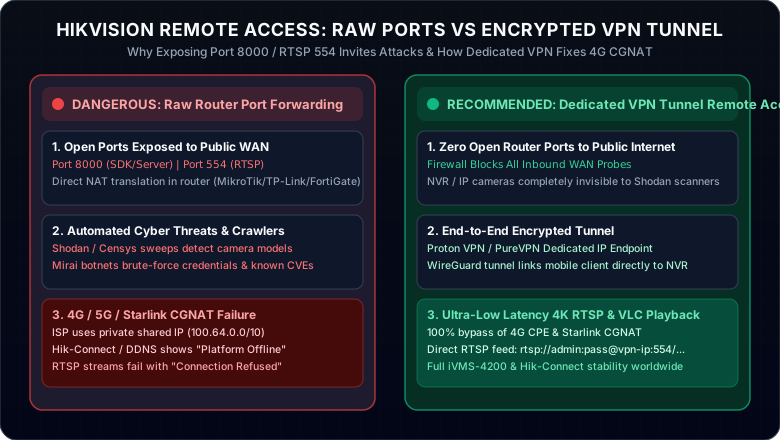
Why Hikvision Port Forwarding Fails & The Hidden Danger of Opening Port 8000
If your camera feeds freeze, report "Connection refused", or drop offline entirely when accessing from cellular data or remote offices, you are dealing with two primary network realities: carrier NAT restrictions and cybersecurity exposure.
When you open hikvision port forwarding 8000 directly on your router, search engines like Shodan and Censys index your NVR within hours. Automated botnets constantly scan for known firmware vulnerabilities (such as CVE-2021-36260) and brute-force default credentials. Once compromised, attackers can intercept live feeds, tamper with recordings, or pivot into your home network.
If your Hikvision NVR is connected behind a 4G/5G mobile router (such as Huawei, Netgear Nighthawk, or ZTE CPE) or Starlink, your internet service provider assigns an RFC 6598 private address (100.64.0.0/10). Inbound port forwards fail because the public IP is shared with thousands of carrier subscribers. Hik-Connect displays "Platform Offline" and DDNS cannot establish a connection.
Many residential and mobile internet providers block or throttle incoming unencrypted RTSP traffic on default port 554 to prevent bandwidth congestion and video piracy. Remapping external port 554 to a high random port (e.g. 15554) or tunneling through an encrypted VPN eliminates carrier deep packet inspection (DPI) interference.
On TP-Link, configure Virtual Servers under NAT Forwarding. On MikroTik, remember you need both a dstnat rule and a forward filter rule accepting dstnat state. On FortiGate firewalls, you must create a Virtual IP (VIP) and map a matching Firewall Policy allowing WAN-to-LAN traffic.
Reddit Community Realities: Hikvision Remote Access over CGNAT
A surveillance technician on r/Hikvision reported an iDS-7208HUHI NVR installed at a remote warehouse using a 4G SIM router. The platform repeatedly dropped offline and standard DDNS fixes failed. Because 4G mobile towers operate entirely under CGNAT, incoming SYN packets were dropped at the carrier gateway. The solution was deploying an outbound VPN with a Dedicated IP, enabling steady remote viewing without an on-site static IP contract.
Users seeking to connect standalone Hikvision IP cameras located at vacation homes or construction sites back to their central NVR ran into CGNAT connection refused errors. Community members successfully linked the cameras using a compatible VPN gateway with paid forwarding, feeding the camera’s RTSP service to the central NVR via the VPN exit IP and selected or assigned port.
Hikvision Port Forwarding Settings on FortiGate, MikroTik & TP-Link
- Log into
tplinkwifi.net. - Go to Advanced > NAT Forwarding > Virtual Servers.
- Click Add. Service Type: Custom.
- External Port: 8000, Internal IP: NVR IP, Internal Port: 8000, Protocol: TCP.
- Repeat for RTSP Port 554 and HTTP Port 8080.
- Open Winbox and connect to your router.
- Go to IP > Firewall > NAT.
- Add dstnat rule:
chain=dstnat dst-port=8000,554 protocol=tcp action=dst-nat to-addresses=192.168.1.100. - Under Filter Rules, ensure forward chain accepts
connection-nat-state=dstnat.
- Go to Policy & Objects > Virtual IPs.
- Create VIP: Interface
wan1, External IP, Mapped IP: NVR static address. - Enable Port Forwarding: Protocol TCP, Map 8000 to 8000.
- Go to Firewall Policy and add an inbound policy permitting WAN to LAN with your VIP as Destination.
Stream Hikvision Anywhere: Eliminate 4G CGNAT & Stop Shodan Botnets
Exposing raw ports 8000 and 554 is an unnecessary security risk, and if your ISP enforces CGNAT, direct port forwarding is physically impossible. A compatible VPN gateway with paid forwarding creates an incoming route through CGNAT and keeps the residential IP separate from the public VPN endpoint. Use PureVPN’s selected ports for a multi-port NVR, or Proton VPN’s assigned port for one configurable service.
PureVPN
- Dedicated IP add-on with permanent port forwarding for NVRs
- Zero port changes: stream RTSP and iVMS-4200 without shifting ports
- 100% bypass of 4G CPE mobile broadband and Starlink CGNAT
- 31-day money-back guarantee with zero risk
Proton VPN
- One configurable public listener via paid P2P forwarding on a compatible desktop gateway
- NAT-PMP assigns a port to the gateway; viewers use that port and the VPN exit IP
- Audited no-logs security under strict Swiss jurisdiction
- 30-day money-back guarantee on paid plans
This page contains affiliate links. If you sign up through them, NAT Checker may earn a commission at no extra cost to you.
PureVPN Dedicated IP vs. Proton VPN for Hikvision Surveillance
PureVPN with paid Dedicated IP and Port Forwarding add-ons on a compatible gateway is the gold standard for Hikvision NVRs: you receive a permanent, static public IPv4 address that never shifts upon router reboots, completely bypassing mobile 4G CGNAT and eliminating dynamic DDNS delays. Proton VPN supplies one assigned port on paid P2P connections through a supported desktop host or manual gateway with NAT-PMP renewal. Route that port to a configurable camera service; the phone connects to the public VPN endpoint, with encryption supplied by the camera protocol where supported.
Related Remote Access & Surveillance Troubleshooting Guides
Explore additional security camera and router configuration tutorials across our knowledge base: