DD-WRT Port Forwarding: Step-by-Step Setup & CGNAT Fix
Complete DD-WRT port forwarding guide. Master the Web GUI setup, clarify the Source Net field, fix port forwarding not working, and bypass CGNAT via VPN.
Quick Answer: How to Setup DD-WRT Port Forwarding
To configure dd-wrt port forwarding, navigate to 192.168.1.1 in your browser, open NAT / QoS > Port Forwarding, type your service name under Application, select the Protocol (TCP, UDP, or Both), leave Source Net blank for public access, enter the Port Range (e.g. 25565 for Minecraft, 32400 for Plex), enter your target machine static IP address, check Enable, and click Apply Settings. If your dd wrt port forwarding not working persists, your ISP has assigned a Carrier-Grade NAT (CGNAT) IP in the 100.64.0.0/10 range or your ISP gateway requires bridge mode. Under CGNAT or for secure off-site access, route an encrypted WireGuard or OpenVPN tunnel directly inside DD-WRT using Proton VPN (NAT-PMP port mapping) or PureVPN (Dedicated IP with static port forwarding).
Lab-tested on Linksys WRT3200ACM & Netgear Nighthawk R7000 running DD-WRT v3.0-r56000+ (Linux Kernel 5.15/6.1).
Flashing an open-source firmware like DD-WRT gives you uncompromised sovereignty over your home network. You gain enterprise-grade packet inspection, granular QoS bufferbloat mitigation, and freedom from proprietary vendor bloatware. Yet, when attempting to configure dd-wrt port forwarding to host a dedicated game server, access a media library, or open remote SSH tunnels, you are often met with perplexing hurdles: packets drop silently, the confusing Source Net parameter raises security doubts, and public port checkers declare your ports stubborn and "Closed".
The barrier is rarely your technical competence—it is usually the silent interference of Carrier-Grade NAT (CGNAT), double NAT from upstream fiber gateways, or mismatched firewall filter tables. This hands-on architectural manual walks you through the exact Web GUI configuration, dissects the Source Net access control field, provides an interactive iptables rule builder, and presents a permanent, encrypted VPN bypass for restrictive broadband connections.
Standard DD-WRT Port Forwarding Setup: 3 Core Steps
Follow this procedural baseline to map incoming WAN packets directly to internal hosts inside the DD-WRT administrative panel.
Reserve Static LAN IP
Never forward ports to a dynamic DHCP address. Open Services > Services, find Static Leases, click Add, and enter your target device MAC address and static IP (e.g. 192.168.1.150).
Enter Port Forward Rules
Navigate to NAT / QoS > Port Forwarding. Click Add. Give the application a descriptive name, choose TCP, UDP, or Both, enter the port range, and input your server's internal LAN IP.
Configure Source Net & Save
Leave Source Net empty for global public access, or type a CIDR range (e.g. 198.51.100.0/24) for strict IP whitelisting. Check Enable, click Save, then click Apply Settings.
What is DD-WRT Source Net and What Should You Enter?
In DD-WRT, the Source Net field acts as an ingress packet filter (firewall whitelist) for the forwarded port. It tells the iptables engine which external source IP addresses are authorized to traverse your router's WAN boundary.
Equivalent to 0.0.0.0/0. DD-WRT permits incoming traffic from any IP worldwide. Ideal for public game servers (Minecraft), community media streaming, or public web endpoints.
Entering 203.0.113.50/32 (single remote IP) or 198.51.100.0/24 (office subnet) drops all traffic originating outside those addresses. Highly recommended for SSH (22) and administrative consoles.
DD-WRT Packet Flow Architecture & Tunneling
Visual inspection of incoming WAN packets traversing PREROUTING DNAT, Source Net filtering, and the alternative VPN tunnel path.
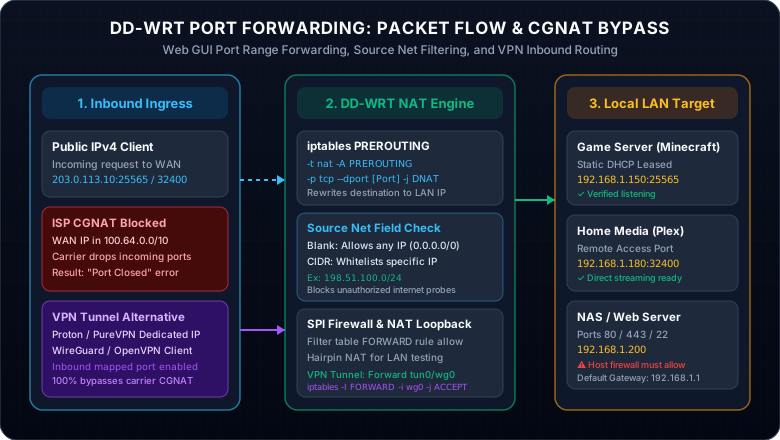
Figure 1.0: Packet traversal sequence showing DD-WRT iptables evaluation against physical WAN interface vs. virtual VPN tunnel interfaces.
DD-WRT Port Forwarding & iptables Rule Builder
Select your target service or enter custom parameters to calculate Web GUI values and copy production iptables commands.
# DD-WRT Inbound Port Forwarding Rule for Minecraft Server
# Destination NAT (PREROUTING)
iptables -t nat -I PREROUTING -p tcp --dport 25565 -j DNAT --to-destination 192.168.1.150:25565
# Firewall Filter Allow (FORWARD)
iptables -I FORWARD -p tcp -d 192.168.1.150 --dport 25565 -j ACCEPT
Common Service Port & Protocol Reference Matrix
Frequently deployed DD-WRT port forwarding destinations and their protocol requirements.
| Application / Service | Port Number | Protocol | Recommended Source Net | Risk Level |
|---|---|---|---|---|
| Minecraft Java Server | 25565 | TCP | Blank (Public Play) | Moderate |
| Plex Media Server | 32400 | TCP | Blank (Mobile Roaming) | Low (Authenticated) |
| WireGuard VPN Tunnel | 51820 | UDP | Blank (Roaming Devices) | Very Low (Crypto Auth) |
| SSH Shell Administration | 22 | TCP | Office CIDR / Static IP | High if Public |
| Valheim Dedicated Server | 2456-2457 | UDP | Blank (Steam P2P) | Low |
Troubleshooting: Why DD-WRT Port Forwarding Fails
If external port scanning reports "Connection Refused" or "Connection Timed Out", resolve these four underlying causes.
Carrier-Grade NAT (CGNAT) Detected on WAN
Open Status > Router in DD-WRT and inspect your WAN IP. If the IP address falls within the 100.64.0.0/10 reserved block (100.64.0.0 through 100.127.255.255 according to RFC 6598), your ISP shares a single public IPv4 address across dozens of customers. Inbound unsolicited SYN packets are dropped at the carrier tier, rendering router-level port forwarding completely useless.
Double NAT with ISP Fiber / Cable Gateway
If your DD-WRT WAN IP begins with 192.168.x.x or 10.x.x.x, you are connected behind another router (the ISP modem/gateway). You must access the upstream gateway settings and enable Bridge Mode (or IP Passthrough) to feed the true public IP directly into DD-WRT's WAN interface.
Missing NAT Loopback (Hairpin NAT) When Testing Internally
If you test your external WAN IP from a computer inside your own home network and it fails, the port forward may still be working perfectly from the outside world. DD-WRT supports NAT Loopback, but if you have custom iptables scripts modifying the nat table, hairpin translation can break. Always test reachability via your mobile phone on cellular LTE/5G disconnected from home Wi-Fi.
Host Software Firewall Dropping Non-Local Subnets
Operating systems like Windows 11 and Ubuntu ufw frequently block incoming packets originating from public IP addresses by default, even while allowing local LAN traffic. Ensure your Windows Defender Firewall has an inbound rule explicitly permitting the target port on Public and Private network profiles.
Port Forwarding Over DD-WRT VPN: Bypassing CGNAT
When your ISP enforces CGNAT or refuses to allocate a static public IPv4 address, running a commercial VPN client with inbound port forwarding directly inside DD-WRT solves the problem permanently.
Why a VPN Tunnel Beats Traditional WAN Forwarding
Opening ports on your physical home WAN exposes your residential router to 24/7 automated scans from botnets and Shodan crawlers. In contrast, routing through a dedicated VPN tunnel gives you:
- 100% CGNAT Bypass: Works over Starlink & 5G home internet.
- DDoS & IP Protection: Your real home IP remains invisible.
- Dedicated Static IP: Permanent public IP without ISP enterprise fees.
- Native DD-WRT Compatibility: Configured via OpenVPN or WireGuard tab.
PureVPN
- Dedicated IP add-on assigns a persistent public IPv4 address to your DD-WRT router
- Paid Port Forwarding add-on on eligible connections retains selected port policies
- 100% bypasses carrier CGNAT (Starlink, T-Mobile 5G, and municipal fiber)
- 31-day risk-free money-back guarantee with 24/7 technical onboarding support
5-year plan·$1.69/mo $12.95/mo
Proton VPN
- Encrypted WireGuard and OpenVPN tunnels completely hide physical WAN IP
- Paid P2P forwarding needs NAT-PMP port requests and renewal on a manual router connection
- Independently audited no-logs architecture protected under strict Swiss privacy laws
- 30-day money-back guarantee with ultra-fast 10 Gbps server infrastructure
2-year plan
This page contains affiliate links. If you sign up through them, NAT Checker may earn a commission at no extra cost to you.
How to Route Inbound Tunnel Traffic to LAN in DD-WRT
First activate PureVPN’s paid forwarding add-on and use an eligible profile, or generate a Proton paid P2P profile with NAT-PMP and run a client to request and renew its assigned port. Once you have connected the profile under Services > VPN in DD-WRT, your incoming traffic arrives on the tunnel interface (e.g. tun0 for OpenVPN, wg0 for WireGuard). To forward incoming packets from the VPN tunnel to your local server, add these lines under Administration > Commands > Save Firewall:
# Allow and route inbound packets from VPN tunnel (tun0) to internal server
iptables -I FORWARD -i tun0 -p tcp -d 192.168.1.150 --dport 25565 -j ACCEPT
iptables -t nat -I PREROUTING -i tun0 -p tcp --dport 25565 -j DNAT --to-destination 192.168.1.150:25565
Frequently Asked Questions
Clear, authoritative answers to common search questions regarding DD-WRT port forwarding rules, firewall security, and VPN routing.